Article: Online safety
Chat GPT
1 min read
Read More
Article: Online safety
All social media sites have a responsibility to keep their users safe and to ensure that all reports of cyber-bullying and abuse are dealt with effectively, however we and our young people as users of such sites, also have a responsibility to make sure they are using them in a safe, respectful and appropriate manner.
Although the law and guidelines are there it is important to acknowledge the immense pressure our young people are under to use social media, share their location, send explicit images, upload the best photographs, be ready and available to chat to friends 24/7, be on group chats … the list goes on.
Did you know that most social media sites have age restrictions?
| Site | Age | Safety |
| 16 | Once you install the app, it checks your address book and connects you automatically to anyone else you know who is using the App. You can block and delete a contact who may be bullying you through WhatsApp: 1. Click on their name then using the dropdown menu, 2. Choose to ‘block’ the person You can find out more by emailing WhatsApp at support@whatsapp.com | |
| 13 | Instagram’s advice is to block and unfollow the person who is being abusive. To block someone on Instagram, tap their username to open their profile, tap the three dots and press the option to ‘Block User’. Under this same menu there is also the option to restrict a user which means no one else will see their comments on your posts, their messages will go into your message request folder and they won’t be able to see if you’re online or have read their messages. This feature is good to use if you feel that you need space from someone, rather than if you’re experiencing online abuse, harassment or bullying. If someone is being abusive you can report them by going to the ‘…’ menu on their profile, press ‘Report’ and follow the next steps. | |
| TikTok | 13 | 1. To block someone; Go to the user’s profile that you want to block Hit ‘…’ in the upper right hand corner of their profile. Select ‘Block’ 2. The user will not be notified when you block them; however, if a user is blocked, they will not be able to follow you or view your videos. Blocked users cannot see your TikTok videos or comments. When they try, they will see a message that says ‘You cannot view this user’s videos due to their privacy settings’. |
| YouTube | 13* | You can report users, inappropriate background images, or inappropriate profile avatars using the reporting flow located on the bottom of every channel. 1. Sign in to YouTube. 2. Go to the channel page you want to report. 3. Click ‘About’. 4. Click ‘Report’. 5. Select the option that best suits your issue. To block someone ; Click ‘About’ on their profile, then hit the flag button. In the drop down menu, you’ll see an option ‘Block User’. Once you confirm your decision to block this commenter, they won’t be able to send you direct messages, or be able to comment on your videos or your channel. |
| Snapchat | 13 | To block a ‘friend’. Tap the Menu icon, Select ‘My Friends’, Locate their name in the list and swipe right across their name: press Delete. To block someone who added you on Snapchat: Tap ‘Added Me’ on the Profie Screen, Tap their name and tap the ‘Wheel Icon’ next to their name. Press ‘Block’. This will prevent them from sending you Snaps or Chats or from viewing your content. If a person is bullying or harassing you or you receive an inappropriate image report it by pressing and holding on their username, tap ‘Manage Friendship’ and then tap ‘Report’ |
| 13 | If a person sends you a tweet or replies to a tweet with a comment that you don’t like, you can unfollow that person. To stop them from further contacting you, you can block them. If you receive unwanted replies or abuse or threats from someone on Twitter you can report them direct to Twitter. To do this, go onto their profile tap the ‘…’ on their profile, Press ‘Report’ and follow the next steps. You can protect your tweets so that people can only follow you if you approve them first. Do this by going into the ‘Settings’ menu, then ‘Security and Privacy’ and ticking the ‘Protect My Tweets’ box. To remove or block someone on Twitter, click on the button with a head icon on it next to the ‘Follow’ button on a user’s profile. When you click on this you will see a menu with the options to ‘Block’ the user to prevent them from seeing your profile and you can also ‘Report for Spam’, which will alert Twitter to any users who are abusing the service |
*13 with parent’s permission, 18 without parent’s permission


Toolkit Download
This toolkit provides insight into the issues affecting our 9 to 12 year old children and offers practical ways to support them.
Toolkit Download
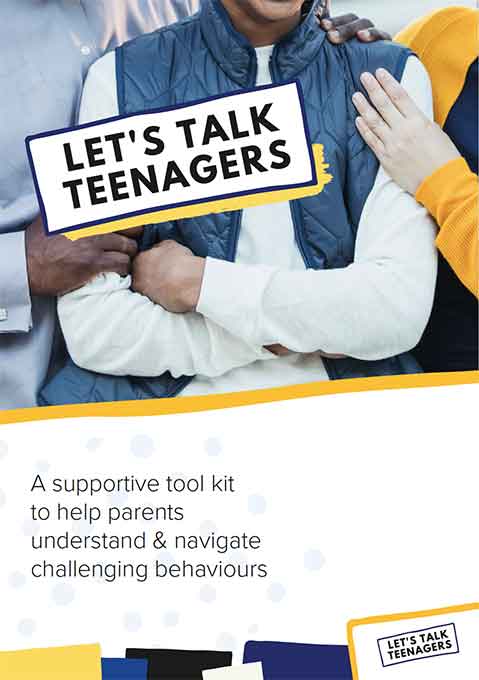
This toolkit gives you valuable insights into teenage challenges and practical ways to help.